Flutter Draggable floating button
1
2
3
4
5
6
7
8
9
10
11
12
13
14
15
16
17
18
19
20
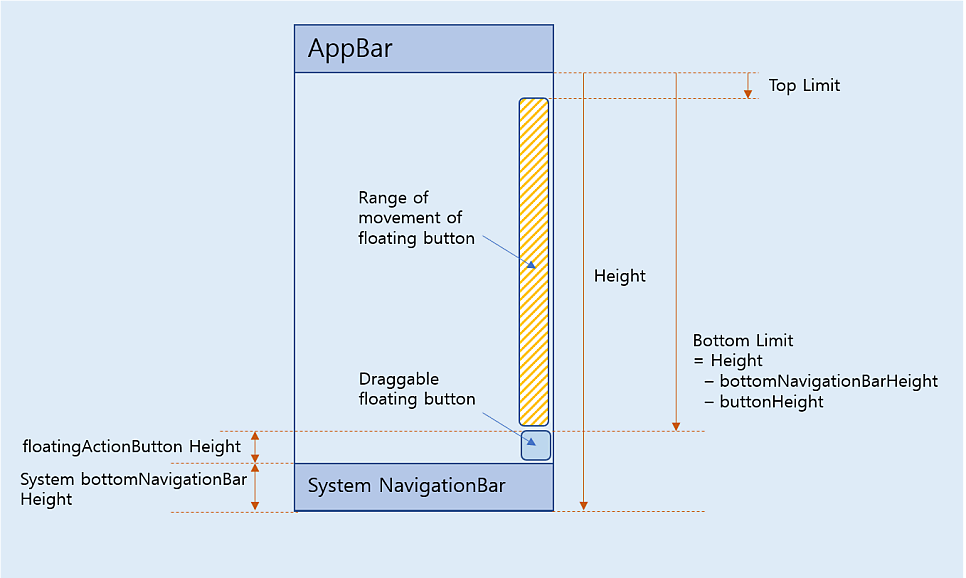
// Get the size of the FloatingActionButton and return it
  double getFabHeight() {
    final RenderBox renderBox = _fabKey.currentContext!.findRenderObject() as RenderBox;
    return renderBox.size.height*1.5;
  }

  // Calculate the Top Limit for the button position
  double getTopLimit() {
    final topLimit = MediaQuery.of(context).padding.top; // Top of the screen
    return topLimit;
  }

  // Calculate the Bottom Limit for the button position
  double getBottomLimit(double fabHeight) {
    double bottomNavigationBarHeight = getBottomNavigationBarHeight(context);
    printDebug("bottomNavigationBarHeight: $bottomNavigationBarHeight");
    final bottomLimit = MediaQuery.of(context).size.height - bottomNavigationBarHeight - fabHeight;
    return bottomLimit;
  }
Button에 대한 full code.
1
2
3
4
5
6
7
8
9
10
11
12
13
14
15
16
17
18
19
20
21
22
23
24
25
26
27
28
29
30
31
32
33
34
35
36
37
38
39
40
41
42
43
44
45
46
47
48
49
50
51
52
53
54
55
56
57
58
59
60
61
62
63
64
65
66
67
68
69
70
71
72
73
74
75
76
77
78
79
80
81
82
83
84
85
86
87
88
89
90
91
92
93
94
95
96
97
98
class DraggableFloatingActionButton extends StatefulWidget {
  final VoidCallback onPressed;
  final Icon buttonIcon;
  final String tooltipMessage; // Add a parameter for the tooltip message

  const DraggableFloatingActionButton({
    super.key,
    required this.onPressed,
    required this.buttonIcon,
    required this.tooltipMessage,
  });

  @override
  _DraggableFloatingActionButtonState createState() => _DraggableFloatingActionButtonState();
}

class _DraggableFloatingActionButtonState extends State {
  double topPosition = 0.0;
  late double topLimit;
  late double bottomLimit;
  // Create a global key for the FloatingActionButton
  final GlobalKey _fabKey = GlobalKey();
  late double fabHeight; // Adjust this value if using a different size for the FloatingActionButton


  @override
  void initState() {
    super.initState();

    // Set the initial position for the button (center of the screen)
    WidgetsBinding.instance.addPostFrameCallback((_) {
      final screenHeight = MediaQuery.of(context).size.height;
      setState(() {
        topPosition = screenHeight / 2;
        printDebug("screenHeight: $screenHeight");
        topLimit = getTopLimit();
        // Get the height of the FloatingActionButton
        fabHeight = getFabHeight();
        printDebug("fabHeight: $fabHeight");
        // Calculate the bottom limit for the button position
        bottomLimit = getBottomLimit(fabHeight);
      });
    });
  }

  // Get the size of the FloatingActionButton and return it
  double getFabHeight() {
    final RenderBox renderBox = _fabKey.currentContext!.findRenderObject() as RenderBox;
    return renderBox.size.height*1.5;
  }

  // Calculate the Top Limit for the button position
  double getTopLimit() {
    final topLimit = MediaQuery.of(context).padding.top; // Top of the screen
    return topLimit;
  }

  // Calculate the Bottom Limit for the button position
  double getBottomLimit(double fabHeight) {
    double bottomNavigationBarHeight = getBottomNavigationBarHeight(context);
    printDebug("bottomNavigationBarHeight: $bottomNavigationBarHeight");
    final bottomLimit = MediaQuery.of(context).size.height - bottomNavigationBarHeight - fabHeight;
    return bottomLimit;
  }


  // Update the position of the button when it's dragged
  void onDragUpdate(BuildContext context, DragUpdateDetails details) {
    // Calculate the new position of the button
    final newTopPosition = topPosition + details.delta.dy;

    printDebug("topLimit: $topLimit, bottomLimit: $bottomLimit, newTopPosition: $newTopPosition");
    // Update the position while ensuring it's within the screen bounds
    setState(() {
      topPosition = newTopPosition.clamp(topLimit, bottomLimit);
    });
  }

  @override
  Widget build(BuildContext context) {
    return Positioned(
      right: 4, // Keep the button aligned to the right border of the screen
      top: topPosition,
      child: GestureDetector(
        onVerticalDragUpdate: (details) => onDragUpdate(context, details),
        child: Tooltip(
          message: widget.tooltipMessage,
          child: FloatingActionButton(
            key: _fabKey,
            onPressed: widget.onPressed,
            mini: true, // Set the button size to mini
            child: widget.buttonIcon,
          ),
        ),
      ),
    );
  }
}
화면 Widget에서 사용할 때는 Stack에 넣어서 사용.
1
2
3
4
5
6
7
8
9
10
11
12
13
14
15
16
17
18
19
20
21
22
23
24
25
@override
Widget build(BuildContext context) {
  return Scaffold(
    appBar: AppBar(
      // Your AppBar configuration
    ),
    body: Stack(
      children: [
        // Other widgets that are part of your body content
        WebViewWidget(controller: _controller),
        // Other layers or content...

        // Positioned DraggableFloatingActionButton inside the Stack
        DraggableFloatingActionButton(
          onPressed: () {
            // Your onPressed code here
          },
          buttonIcon: const Icon(Icons.star),
          tooltipMessage: 'this is floating button',
        ),
      ],
    ),
  );
}
[영상]
이 기사는 저작권자의 CC BY 4.0 라이센스를 따릅니다.