Flutter Simple 그림판 (4) - 텍스트 컨테이너 줄바꿈 감지(word - breaking)(character-breaking)
문제 해결 알고리즘
문자열을 space, tab, 혹은 enter로 끊어서 리스트에 담고, 앞에서부터 한개, 두개, … n개 만큼 textPainter에 넣어서 textPainter.width를 확인하고, 만약 containerWidth보다 커지는 시점이 오거나 더 이상 단어가 남아있지 않았을 때 그 바로 직전 단어(혹은 마지막 단어)의 인덱스와 시작 인덱스를 묶어서 함께 result 리스트에 저장한다. 예를 들어 1번째 단어부터 시작하여 6번째 단어에서 그 조건에 해당하면, result = [[1,5]] 이다. 이어서 진행하면 예를 들어 다음과 같이 될 수 있다. 전체 단어 개수가 15개일 때, result = [[1,5], [6,12], [13,15]]
1
2
3
4
5
6
7
8
9
10
11
12
13
14
15
16
17
18
19
20
21
22
23
24
25
26
27
28
29
30
31
32
33
34
35
36
37
38
39
40
41
42
43
44
45
46
47
48
49
50
51
52
53
54
55
56
57
58
59
60
61
62
63
64
65
66
67
68
69
70
71
72
73
74
75
76
77
78
79
80
81
82
83
84
85
86
87
88
89
90
91
92
93
94
95
96
97
98
import 'package:flutter/material.dart';

void main() {
  runApp(MyApp());
}

class MyApp extends StatelessWidget {
  @override
  Widget build(BuildContext context) {
    // Example text style and container width for demonstration
    TextStyle textStyle = const TextStyle(fontSize: 20, fontWeight: FontWeight.bold);
    TextAlign textAlign = TextAlign.left;
    double containerWidth = 300.0; // Example container width

    // Sample long text input
    String inputText = "This is a sample text to demonstrate how we can format text "
        "based on container width and text style in Flutter. "
        "This particular string is designed to exceed the container width "
        "and demonstrate line breaking and clipping functionality.";

    // Format the text with measurement
    String formattedText = breakWordsWithMeasurement(inputText, textStyle, containerWidth, textAlign);
    print("Formatted Text: $formattedText");
    return MaterialApp(
      home: Scaffold(
        appBar: AppBar(
          title: Text('Formatted Text Demo'),
        ),
        body: SingleChildScrollView(
          child: Padding(
            padding: const EdgeInsets.all(8.0),
            // Display original and formatted text
            child: Column(
              crossAxisAlignment: CrossAxisAlignment.start,
              children: [
                // show width
                Text(
                  'Container Width: $containerWidth',
                  style: TextStyle(fontWeight: FontWeight.bold),
                ),
                // Original text
                Text(
                  'Original Text:',
                  style: TextStyle(fontWeight: FontWeight.bold),
                ),
                Container(
                  color: Colors.blueAccent.withOpacity(0.2),
                  width: containerWidth,
                  child: Text(inputText, style: textStyle, textAlign: textAlign),
                ),
                Divider(),
                // Formatted text
                Text(
                  'Formatted Text:',
                  style: TextStyle(fontWeight: FontWeight.bold),
                ),
                Container(
                  width: containerWidth,
                  child: Text(formattedText, style: textStyle),
                ),
              ],
            ),
          ),
        ),
      ),
    );
  }
}

String breakWordsWithMeasurement(
    String input, TextStyle textStyle, double containerWidth, TextAlign textAlign) {
  List words = input.split(RegExp(r'\s+')); // Split input by any whitespace
  List> result = []; // To store result as [[start, end]...]
  TextPainter textPainter = TextPainter(
    textDirection: TextDirection.ltr,
    textAlign: textAlign, // Apply textAlign
  );
  int startIndex = 0; // Start index for each line
  String currentLine = "";

  for (int i = 0; i  containerWidth && !currentLine.isEmpty) {
      // If current line width exceeds containerWidth, store indices and reset
      result.add([startIndex, i - 1]);
      startIndex = i; // Next line starts with current word
      currentLine = words[i]; // Reset currentLine to current word
    } else {
      currentLine = testLine; // Append word to current line
    }
  }

  // Add the last line if there's any content left
  if (currentLine.isNotEmpty) {
    result.add([startIndex, words.length - 1]);
  }

  // Formatting result for demonstration, not part of the core logic
  return result.map((range) => "Words from ${range[0] + 1} to ${range[1] + 1}").join(", \n");
}
문자열 줄바꿈 위치 확인 테스트
커스텀 기능 구현함.
다음 번에는 추가로 캐릭터단위의 character-breaking 도 만들어놓아야 할 듯 함.

+) 추가 문자 브레이킹
1
2
3
4
5
6
7
8
9
10
11
12
13
14
15
16
17
18
19
20
21
22
23
24
25
26
27
28
29
30
31
32
33
34
35
36
37
38
39
40
41
42
43
44
45
46
47
48
49
50
51
52
53
54
55
56
57
58
59
60
61
62
63
64
65
66
67
68
69
70
71
72
73
74
75
76
77
78
79
80
81
82
83
84
85
86
87
88
89
90
91
import 'package:flutter/material.dart';

void main() {
  runApp(MyApp());
}

class MyApp extends StatelessWidget {
  @override
  Widget build(BuildContext context) {
    TextStyle textStyle = const TextStyle(fontSize: 20, fontWeight: FontWeight.bold);
    TextAlign textAlign = TextAlign.left;
    double containerWidth = 300.0; // Example container width

    String inputText = "This is a sample text to demonstrate how we can format text "
        "based on container width and text style in Flutter. "
        "This particular string is designed to exceed the container width "
        "and demonstrate line breaking and clipping functionality.";

    // Use the new function
    String formattedText = breakCharacterWithMeasurement(inputText, textStyle, containerWidth, textAlign);
    print("Formatted Text: $formattedText");
    return MaterialApp(
      home: Scaffold(
        appBar: AppBar(
          title: Text('Formatted Text Demo'),
        ),
        body: SingleChildScrollView(
          child: Padding(
            padding: const EdgeInsets.all(8.0),
            child: Column(
              crossAxisAlignment: CrossAxisAlignment.start,
              children: [
                Text(
                  'Container Width: $containerWidth',
                  style: TextStyle(fontWeight: FontWeight.bold),
                ),
                Text(
                  'Original Text:',
                  style: TextStyle(fontWeight: FontWeight.bold),
                ),
                Container(
                  color: Colors.blueAccent.withOpacity(0.2),
                  width: containerWidth,
                  child: Text(inputText, style: textStyle, textAlign: textAlign),
                ),
                Divider(),
                Text(
                  'Formatted Text:',
                  style: TextStyle(fontWeight: FontWeight.bold),
                ),
                Container(
                  // full width
                  width: double.infinity,
                  child: Text(formattedText, style: textStyle),
                ),
              ],
            ),
          ),
        ),
      ),
    );
  }
}

String breakCharacterWithMeasurement(
    String input, TextStyle textStyle, double containerWidth, TextAlign textAlign) {
  List> result = [];
  TextPainter textPainter = TextPainter(
    textDirection: TextDirection.ltr,
    textAlign: textAlign,
  );
  int startIndex = 0;
  String currentLine = "";

  for (int i = 0; i  containerWidth && !currentLine.isEmpty) {
      result.add([startIndex, i - 1]);
      startIndex = i;
      currentLine = input[i];
    } else {
      currentLine = testLine;
    }
  }

  if (currentLine.isNotEmpty) {
    result.add([startIndex, input.length - 1]);
  }

  // Formatting result for demonstration
  return result.map((range) => input.substring(range[0], range[1] + 1)).join("\n");
}
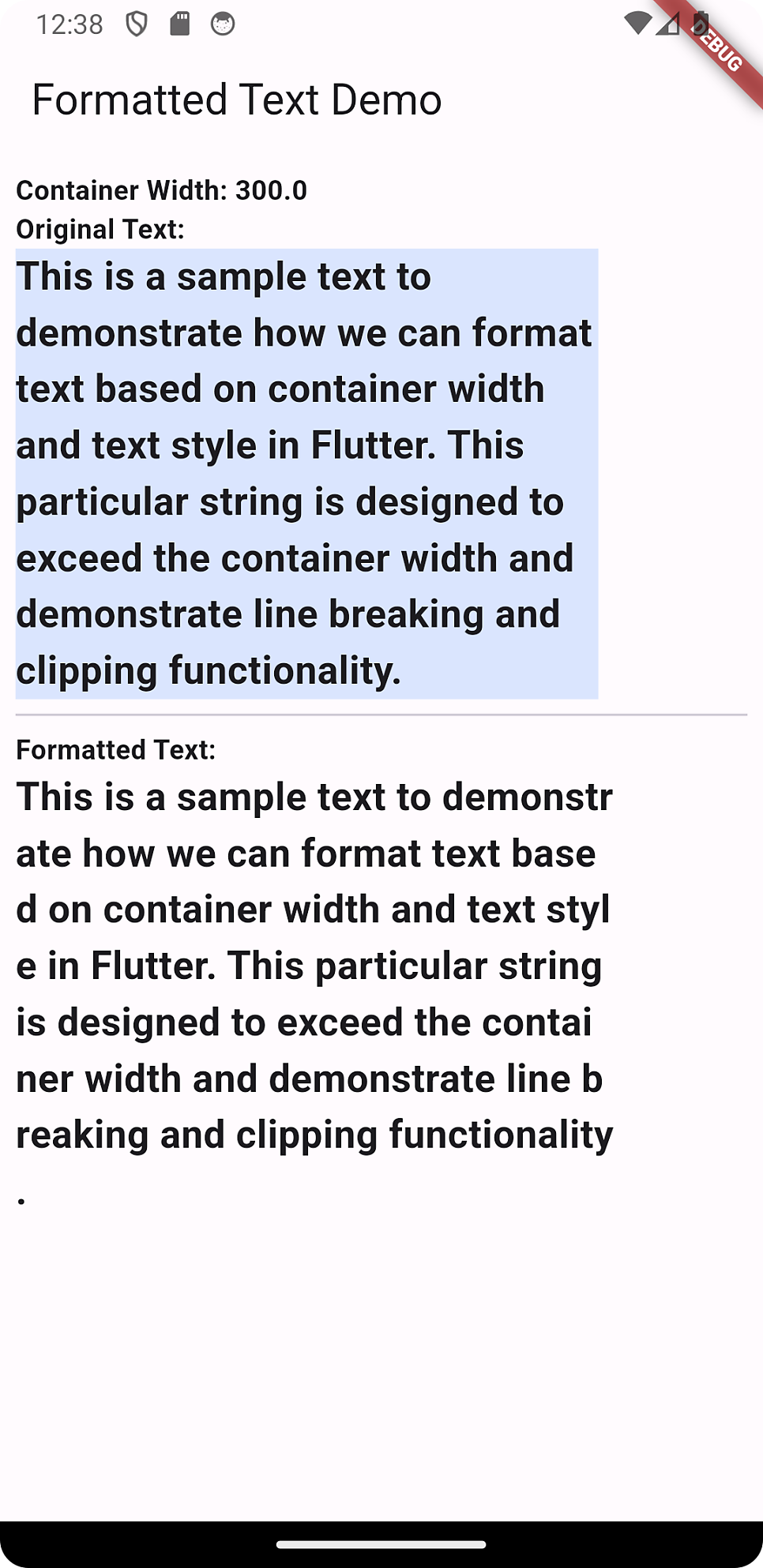
다 유용하게 쓸 데가 있음!
이 기사는 저작권자의 CC BY 4.0 라이센스를 따릅니다.