Unity Debug Log Switching

유니티 코드를 작성하다 보면 Debug Log를 사용하는 것이 도움이 많이 됩니다. 그런데 이것은 많이 사용할 수록 빌드하는 앱의 성능에 나쁜 영향을 주게 됩니다. 그래서 최종 빌드할 때는 Debug Log를 사용하지 않도록 세팅하하는 것이 필수입니다. 오늘은 그런 주제로 포스팅을 하겠습니다.
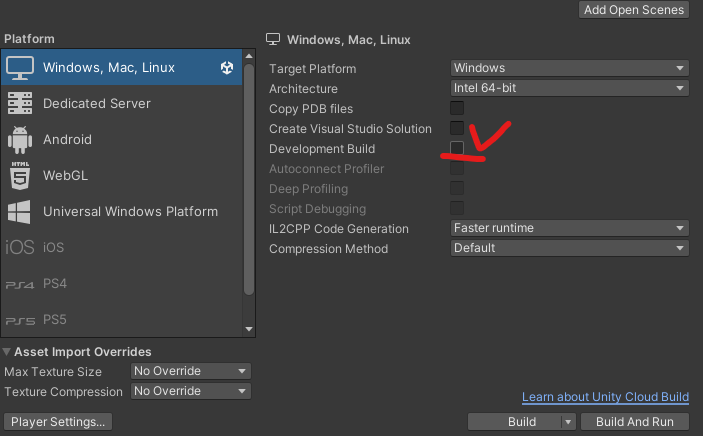
기본적으로 유니티 에디터에서는 빌드를 할 때 디버깅을 할지 안할지 선택할 수 있습니다.
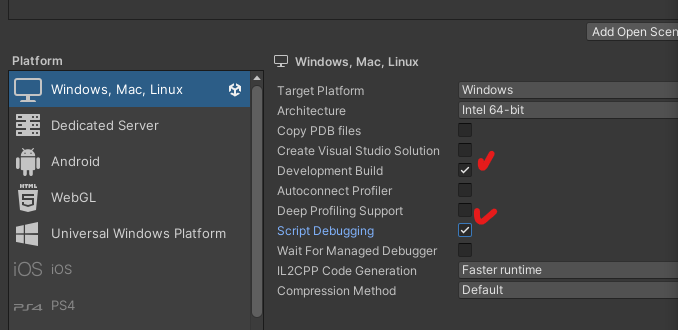
오늘은 그 외의 내용을 더 자세히 알아보겠습니다.
기본적으로 유니티에서는 Debug대신 Logger를 사용할 경우에도 로그를 끄고 켤 수 있는 기능을 제공합니다. https://docs.unity3d.com/ScriptReference/Logger-filterLogType.html 위 링크는 유니티 2021.3 LTS 버전 에디터의 사용 매뉴얼에서 filterLogType에 관한 내용이 담겨있습니다. 해당 변수로 로그를 조작하기 위해서는 다음과 같은 코드를 작성해서 object에 component로 넣어주면 됩니다. 그럴 경우, Build 모드가 DebugBuild인지, 아닌지에 따라서 자동으로 로그 출력이 필터링됩니다.
1
2
3
4
5
6
7
8
9
10
11
12
13
14
15
16
17
18
19
using UnityEngine;
using System.Collections;

public class MyGameClass : MonoBehaviour
{
    private static ILogger logger = Debug.unityLogger;
    private static string kTAG = "MyGameTag";

    void Start()
    {
        if (Debug.isDebugBuild)
            logger.filterLogType = LogType.Log;
        else
            logger.filterLogType = LogType.Warning;

        logger.Log(kTAG, "This log will be displayed only in debug build");
        logger.LogError(kTAG, "This log will be displayed in debug and release build");
    }
}
위처럼 로그 타입으로 필터링하거나, logEnabled 를 조작해서 더 간단한 조건으로만 필터링하는 방법도 있습니다.
그런데 이렇게 디버그 모드를 disable하는 것으로는 충분하지 않다는 주장도 있습니다. 동적 공간을 할당받는다고 하는데 제가 확인을 안해봐서 확실치는 않습니다.

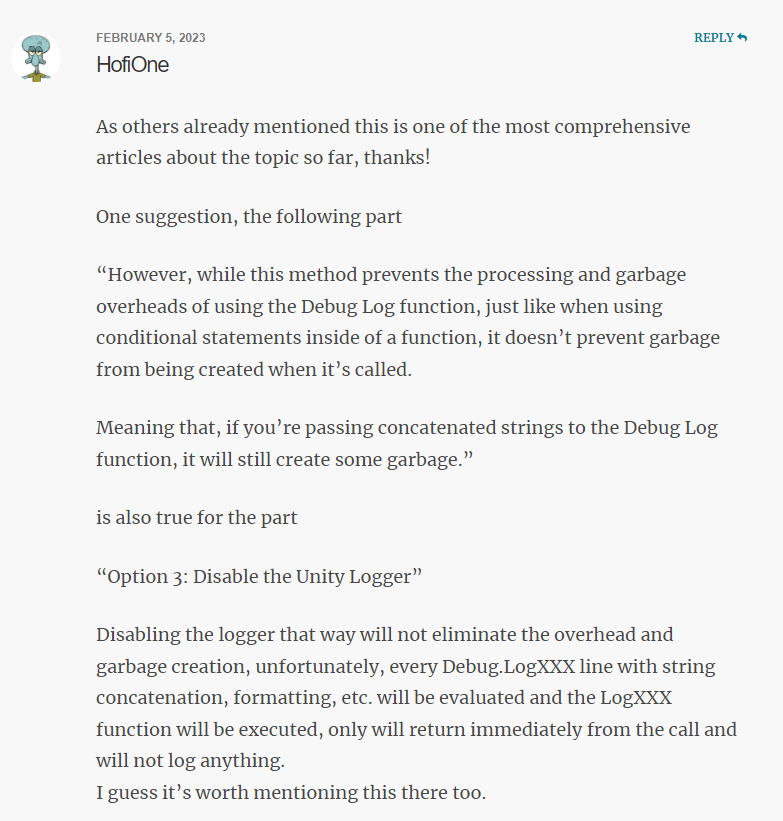
그래서 많은 분들이 직접 Debug.cs를 작성해서 덮어씌워 사용하시는 것 같습니다. 아래의 코드를 사용하면 사전에 정의한 변수 'ENABLE_LOG' 하나로 로그를 끄고 켤 수가 있습니다.
1
2
3
4
5
6
7
8
9
10
11
12
13
14
15
16
17
18
19
20
21
22
23
24
25
26
27
28
29
30
31
32
33
34
35
36
37
38
39
40
41
42
43
44
45
46
47
48
49
50
51
52
53
54
55
56
57
58
59
60
61
62
63
64
65
66
67
68
69
70
71
72
73
74
75
76
77
78
79
80
81
82
83
84
85
86
87
88
89
90
91
92
93
94
95
96
97
98
#if UNITY_EDITOR
#define ENABLE_LOG
#endif

using UnityEngine;

///
/// It overrides UnityEngine.Debug to mute debug messages completely on a platform-specific basis.
///
/// Putting this inside of 'Plugins' foloder is ok.
///
/// Important:
///     Other preprocessor directives than 'UNITY_EDITOR' does not correctly work.
///
/// Note:
///     [Conditional] attribute indicates to compilers that a method call or attribute should be
///     ignored unless a specified conditional compilation symbol is defined.
///
/// See Also:
///     http://msdn.microsoft.com/en-us/library/system.diagnostics.conditionalattribute.aspx
///
/// 2012.11. @kimsama
///
public static class Debug
{
    public static bool isDebugBuild
    {
        get { return UnityEngine.Debug.isDebugBuild; }
    }

    [System.Diagnostics.Conditional("ENABLE_LOG")]
    public static void Log(object message)
    {
        UnityEngine.Debug.Log(message);
    }

    [System.Diagnostics.Conditional("ENABLE_LOG")]
    public static void Log(object message, UnityEngine.Object context)
    {
        UnityEngine.Debug.Log(message, context);
    }

    [System.Diagnostics.Conditional("ENABLE_LOG")]
    public static void LogError(object message)
    {
        UnityEngine.Debug.LogError(message);
    }

    [System.Diagnostics.Conditional("ENABLE_LOG")]
    public static void LogError(object message, UnityEngine.Object context)
    {
        UnityEngine.Debug.LogError(message, context);
    }

    [System.Diagnostics.Conditional("ENABLE_LOG")]
    public static void LogWarning(object message)
    {
        UnityEngine.Debug.LogWarning(message.ToString());
    }

    [System.Diagnostics.Conditional("ENABLE_LOG")]
    public static void LogWarning(object message, UnityEngine.Object context)
    {
        UnityEngine.Debug.LogWarning(message.ToString(), context);
    }

    [System.Diagnostics.Conditional("ENABLE_LOG")]
    public static void DrawLine(Vector3 start, Vector3 end, Color color = default(Color), float duration = 0.0f, bool depthTest = true)
    {
        UnityEngine.Debug.DrawLine(start, end, color, duration, depthTest);
    }

    [System.Diagnostics.Conditional("ENABLE_LOG")]
    public static void DrawRay(Vector3 start, Vector3 dir, Color color = default(Color), float duration = 0.0f, bool depthTest = true)
    {
        UnityEngine.Debug.DrawRay(start, dir, color, duration, depthTest);
    }

    [System.Diagnostics.Conditional("ENABLE_LOG")]
    public static void Assert(bool condition)
    {
        if (!condition) throw new System.Exception();
    }

    [System.Diagnostics.Conditional("ENABLE_LOG")]
    public static void LogFormat(string message, params object[] args)
    {
        UnityEngine.Debug.LogFormat(message, args);
    }

    [System.Diagnostics.Conditional("ENABLE_LOG")]
    public static void LogErrorFormat(string message, params object[] args)
    {
        UnityEngine.Debug.LogErrorFormat(message, args);
    }

}
출처: http://geekcoders.tistory.com/56 , https://gist.github.com/kimsama/4123043,
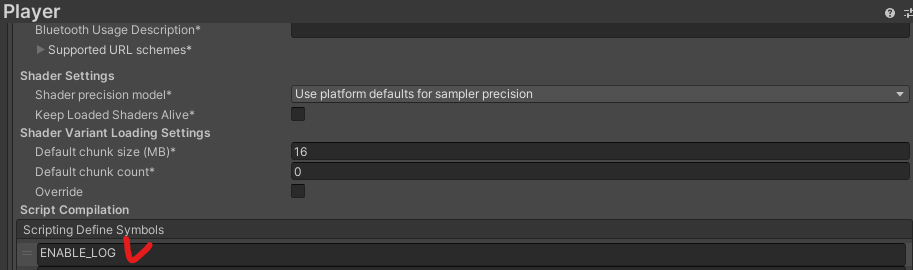
위 코드를 사용하기 위해서는 Plugin폴더에 해당 코드를 넣어두고, Player setting에서 Scripting define symbols에 우리가 정의한 ENABLE_LOG를 넣어주어야 합니다.
감사합니다.

추가 참고 출처: https://reoul.github.io/unity/unity-5/ , https://drehzr.tistory.com/22
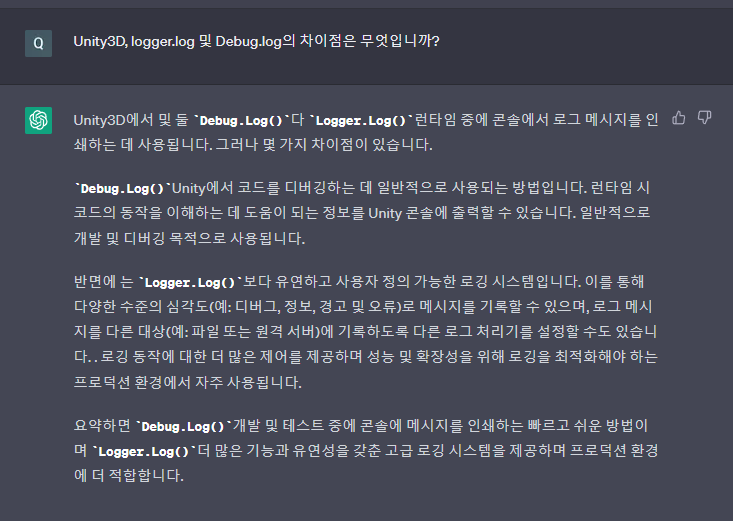
+추가) Logger.log와 Debug.log의 차이점..